


Smart Printer: Mobile Print
4.11.94K Reviews
App Specs
- Version
- 4.1.3
- Updated On
- License
- Free
- Downloads
- 1,000,000+
- Developer
- Astraler
- Categories
- Tools
- Platform
- Android
Screenshots

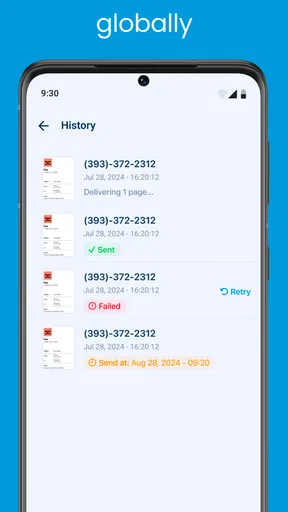
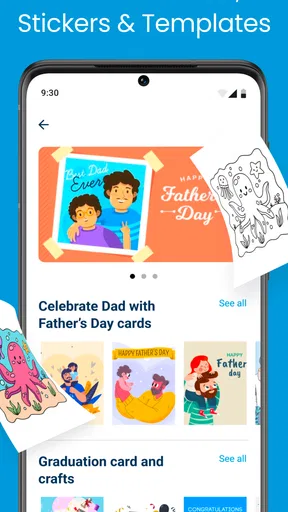
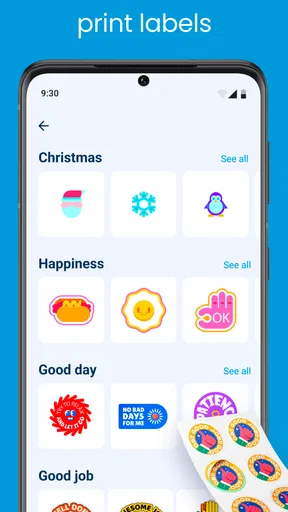
 Analysis by AppCompare
I usually reach for a mobile printing app when a document is ready on my phone and using a computer would add needless steps. Smart Printer: Mobile Print is designed for that in-between moment: finding a printer, choosing a file, and sending it to paper without making the phone feel like a complicated control panel. My view is that it can make everyday printing more convenient, but the experience still depends on the printer and network behaving as they should.
Who benefits most from mobile printing
This is a useful kind of tool if you regularly handle forms, travel documents, school pages, or photos on your phone and have access to a Wi-Fi printer. It is less compelling if you print only once in a while and your printer’s own app already handles your usual jobs reliably. I would think of it as an alternate route to printing rather than a reason to replace software that already fits your setup.
A practical example: I have a form saved on my phone that needs to be printed before an appointment. Instead of forwarding it to an email account, opening a laptop, and hunting through downloads, I can try to send it from the phone. That shorter route is the real appeal. Before pressing print, though, I would check the preview and the selected printer; a quick glance can prevent wasting paper on the wrong page or device.
What to check before blaming the app
Printing problems can look alike even when their causes differ. If the printer does not appear, I would first confirm that it is powered on, ready, and connected to the same home or office network as the phone. A printer that has gone to sleep or dropped its connection may not be discoverable immediately. Waiting for it to wake fully and trying again is a sensible first step, not a sign that the app is broken.
If the printer does appear but a job stalls, I would check the printer’s own screen or status lights and make sure it is not waiting for paper, ink, or another action. Then I would cancel a duplicate attempt before sending the file again. Repeatedly tapping print can leave you with several copies once the connection recovers, which is especially annoying with a long document.
The app is a free tools app from Astraler. It has a 4.1 average from around 51,000 ratings, and it has passed a million installs. Those figures suggest that many people are using it, but they do not guarantee that every printer or network will work smoothly in every home. Compatibility in practice is shaped by the specific printer model and how it is connected.
Getting Started with Smart Printer
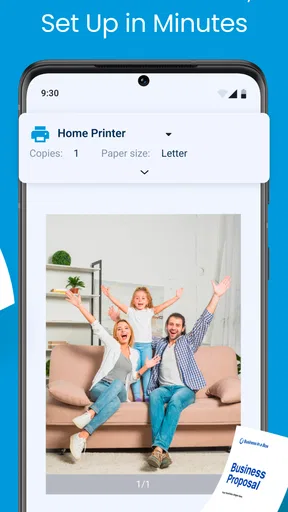
First things first, downloading and setting up Smart Printer: Mobile Print is a walk in the park. Available for both Android and iOS, you can grab it from your respective app store. Once installed, the app guides you through a simple setup process where you connect it to your printer. I found this super intuitive, even for someone who’s not exactly a tech wizard.
Worth Reading Before You Choose

EA SPORTS FC Mobile 26 Is a Bigger Football Game, but It Takes Time

Flipboard Shows What News Apps Must Do Beyond the Feed

Switching to Android Auto Means Rethinking Your Driving Routine

Google Calendar Makes a Crowded Week Easier to Manage

Ludo King Makes the Most of the Minutes Between Plans

Baby Panda World Brings Quick Play to Modern Phones, but Its Game Library Feels Busy
The app supports a wide range of printers. In my test, it seamlessly connected to my trusty old HP printer as well as a newer Canon model. No hiccups there, which is always a good sign.
Features that Stand Out
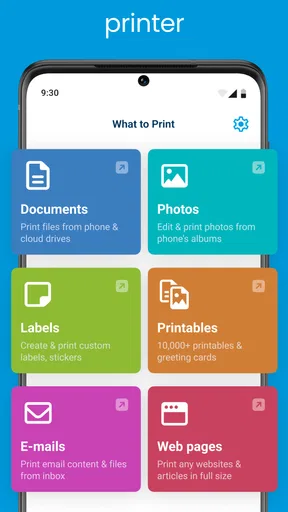
One of the coolest features of the app is the ability to print directly from your phone's storage or cloud services like Google Drive and Dropbox. This means you can easily print documents, images, or even web pages without needing to transfer files to a computer first. Talk about convenience!
Another nifty feature is the ability to customize print settings directly from the app. You can choose the number of copies, adjust the print quality, and even set up double-sided printing. It’s like having a tiny print shop right in your pocket.
User Experience and Interface
The user interface is clean and straightforward, which I appreciate. No unnecessary clutter or confusing options. Everything is where you’d expect it to be. Navigating through the app is smooth, and the response time is quick—no lag, which is crucial when you’re in a rush to get those documents printed.
There’s also a handy feature that lets you preview your document before printing. This might sound trivial, but it’s a lifesaver if you want to ensure everything looks just right before hitting print.
Making a print job easier to recover
When a document does not come out as expected, I would work through one change at a time rather than immediately starting over. First, check whether the job is still waiting in the printer’s queue. If it is, give the printer time to finish or cancel that job before sending another. If the queue is clear, reopen the file and verify the preview, printer selection, and copy count. This simple order helps distinguish a delayed job from a document or selection mistake.
For an important file, I would start with one copy and inspect the result before printing a larger batch. That is a particularly useful habit when the document contains multiple pages or needs a specific layout. It may feel slower for the first sheet, but it is cheaper than discovering that every copy has the same unwanted page break or orientation.
Cloud files add another small point to consider: make sure the document you select is the final version, not an older copy with a similar name. If the file is stored in a cloud service, opening the correct document and reviewing its preview before printing can save a second trip to the printer. For sensitive paperwork, I would also consider whether a shared printer is an appropriate place to send it and collect the pages promptly.
Performance and Reliability
In terms of performance, the app does not disappoint. During my test runs, prints were sharp and clear, maintaining the quality you’d get from printing directly via a computer. The app didn’t crash or freeze, which is more than I can say for some other printing apps I’ve tried in the past.
However, I did notice that the app works best when both your phone and printer are connected to the same Wi-Fi network. While it can work with Bluetooth, the connection was a tad finicky at times, resulting in a few failed print jobs.
Where it fits among the alternatives
The usual alternative is the printer manufacturer’s own app or the print options built into a phone. The manufacturer’s app can be the better choice when you want a workflow tailored to one printer brand or need to deal with that device’s own controls. A phone’s built-in printing route may be simpler if it already recognizes your printer and offers the options you need. I would choose this app when I want another straightforward way to reach a supported printer, especially if I regularly print files kept on my phone.
That flexibility has a trade-off: a broad printer-compatibility claim does not mean every model will be equally easy to connect. The app supports over a thousand Wi-Fi printer models, but I would still check that my particular printer can be found before relying on it for a deadline. If the printer is older, connected through a different network arrangement, or managed by an office, the manufacturer’s guidance or an administrator may be the more useful first stop.
The app is rated for Everyone, and it is free to install. It also offers in-app purchases, with listed item prices ranging from $1.99 to $99.99. I would look carefully at any purchase prompt and decide whether the free workflow already covers my needs before paying. For someone who only prints occasional pages, an optional paid item may not be worth it; frequent users should judge it by the specific benefit offered rather than assuming they need an upgrade.
Final Thoughts
All in all, Smart Printer: Mobile Print is a solid choice if you’re looking to simplify your mobile printing needs. It’s not only user-friendly but also reliable and packed with features that make the printing process as painless as possible.
If you’re tired of emailing files to yourself or dealing with complicated printer software, give this app a shot. It might just be the solution you’ve been looking for to make your life a little easier. Just keep in mind to ensure a strong Wi-Fi connection for the best performance. Happy printing!
Choosing it for the right reason
I would recommend it most to someone who prints from a phone often enough to value skipping the computer, but who does not need a specialized office-printing system. It is also a reasonable option to try when a printer’s usual mobile workflow feels cumbersome. The app’s current version is 3.3.0, and it was released on November 24, 2022; those details are useful context, but the practical test is still whether your printer connects and handles your particular documents well.
I would skip it if your printer is not on a compatible Wi-Fi setup, if your workplace restricts third-party printing tools, or if the built-in option on your phone already does everything you need. In those cases, adding another app may create an extra step instead of removing one. On the other hand, for routine home printing—tickets, a return label, a reading sheet, or a form—the convenience of selecting a file on the phone can be worthwhile once the printer is set up correctly.
My bottom line is straightforward: treat this as a practical bridge between phone files and a nearby printer, not as a fix for every printer problem. Start with a small test page, confirm the network and preview, and only then rely on it for an important batch. That approach lets you judge whether it suits your setup without turning a simple print job into a troubleshooting project.
Pros
- Easy setup with most printers.
- Supports a wide range of file formats.
- Efficient wireless printing.
- User-friendly interface design.
- Regular updates enhance performance.
Cons
- Limited free version features.
- Occasional connectivity issues.
- No support for older devices.
- Ads in the free version can be intrusive.
- Subscription required for premium features.
FAQs for Smart Printer: Mobile Print
What devices are compatible with Smart Printer: Mobile Print?
Smart Printer: Mobile Print is compatible with most Android and iOS devices. Ensure your device runs on Android version 6.0 or later, or iOS version 12.0 or later. It's also important to check if your printer model is supported by the app for seamless connectivity.
How do I connect my printer to the Smart Printer app?
To connect your printer, ensure both your smartphone and printer are on the same Wi-Fi network. Open the app and follow the on-screen instructions to add your printer. The app supports various connection methods, including Wi-Fi Direct, Bluetooth, and USB, depending on your printer model.
What type of documents can I print using the app?
The app supports a wide range of document types, including PDFs, Word documents, Excel spreadsheets, PowerPoint presentations, and images (JPEG, PNG). You can also print web pages and emails directly from your smartphone, making it versatile for both personal and professional use.
Is there a cost to use Smart Printer: Mobile Print?
The app offers a free version with basic features, but for advanced functionalities like cloud printing, scanning, and ad-free experience, a premium subscription is available. Pricing details can be found within the app, and there are often free trial periods to explore premium features.
How secure is my data when using Smart Printer: Mobile Print?
The app prioritizes user security by using encryption protocols to protect your documents and data during transmission. Additionally, it does not store your documents on its servers, ensuring that your personal and professional information remains confidential and secure at all times.


